


Read time: 4 Min
Device encryption is an essential feature that is provided in the Windows operating system for free with the help of BitLocker. It allows users to protect sensitive data from unauthorised access. But sometimes user find themselves locked out from their encrypted drive due to various reasons. In such situations, BitLocker recovery key comes into play. It is a 48- digit numerical password that needs to be entered to access the encrypted drive. The problem is that most people don’t know if the device encryption features are enabled in their systems or not. And where to find BitLocker recovery key if they need one. But don’t worry, we have got a resolution for all your doubts, just follow the blog and get all your questions answered.
Why Users Need BitLocker Recovery Key?
The BitLocker recovery key needs to be entered to access the encrypted drive in the following situations:
- When you have updated the BIOS or Firmware.
- If your device enters recovery mode.
- When hardware is replaced.
- Whenever Windows detects any suspicious activity.
- When you enable BitLocker manually.
- If you connect an External drive during setup.
So now you know the situations when entering BitLocker recovery key is required to access the encrypted drive. Let us now focus on the methods to find the BitLocker key,
Steps to Find BitLocker Recovery Key
To find BitLocker recovery key, users can follow the methods listed below:
Method 1: Microsoft Account (For personal devices)
The most common place users can find a BitLocker recovery key is in their Microsoft account. If you have access to the Microsoft account, follow the instructions below:
- Open aka.ms/myrecoverykey on any web browser.
- Enter your Microsoft Email ID and Password.
- You will see a list of BitLocker recovery keys, including their key IDs.
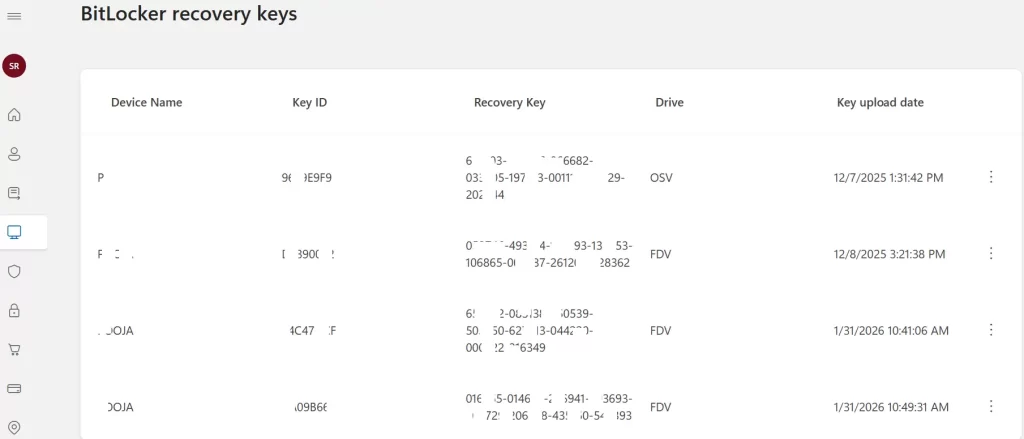
- Now copy the 48-digit recovery key after matching the key ID and enter it on the locked device.
Note: The BitLocker recovery key is saved to the Microsoft account that was signed in when BitLocker was first activated.
Method 2: Azure AD / Microsoft Entra ID (Cloud Devices)
This recovery key is stored in the Azure AD of your organization if your device is connected to Azure Active Directory(now Microsoft Entra ID).
End users may find their recovery key by following this method:
- Open a web browser and visit myaccount.microsoft.com/device-list
- Enter your work Microsoft account credentials.
- Select the device from the list available.
- Click on View BitLocker keys.
- Copy and paste the key matching the key ID.
IT admins can follow the steps below:
- Open Microsoft Entra admin center entra.microsoft.com.
- Sign in with credentials.
- Click on Devices > All Devices.
- Select the device for which you want keys. Click BitLocker keys from the left panel.
- Click to check the recovery key.
Admins can also find BitLocker recovery key using PowerShell
Method 3: Active Directory (On-Premises Enterprise)
If you are connected with an on-premises Active Directory environment, IT admins can find BitLocker recovery key from Active Directory using the following methods:
- Open ADUC(Active Directory Users and Computers) on a domain controller.
- Enable Advanced features from the View menu.
- Locate the computer object.
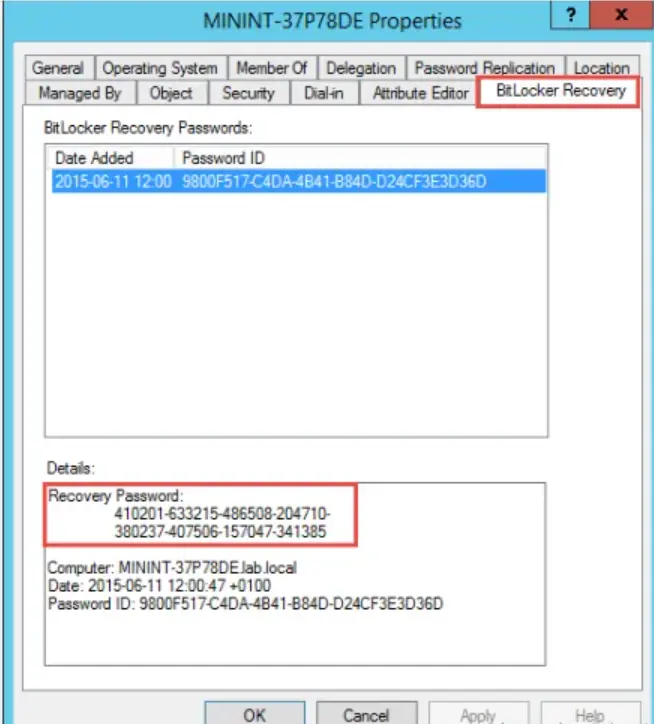
- Right-click > Properties > BitLocker Recovery tab.
- You can view stored recovery keys here.
- Match the Key ID to retrieve the full key.
Admins can also use PowerShell to retrieve the BitLocker recovery key:
Method 4: Method 4: Local File, USB Drive, or Printed Copy
When you run BitLocker, Windows offers the option to print BitLocker recovery or to save it to a USB drive.
- Users can search the system for BitLocker*.txt using File Explorer.
- Check the USB drive or printed document provided to you with the system.
- If you found the USB drive, plug the drive into any device and open the file to look for the recovery key.
What if BitLocker Recovery Key is Not Found?
If you have used all the following methods and are still unable to find BitLocker recovery key, then the last resort available is to use a professional BitLocker data recovery software to recover data from an encrypted drive. BitLocker Data Recovery Tool is one such software that can recover data from an encrypted drive efficiently. With powerful algorithms, this software manages to recover deleted data as well from an encrypted drive, preserving the integrity of the data.

Conclusion
In this article, we have discussed various methods to find BitLocker recovery key to regain access to an inaccessible drive. The BitLocker recovery key can be found at locations such as Microsoft account, Azure AD, Active Directory, a printed document, or in a USB drive provided by the IT admins. Most users can successfully find the BitLocker recovery key using these methods. But if the recovery key is still untraceable, users are left with the option to use BitLocker data recovery software to recover inaccessible data. The BitLocker data recovery software suggested above works perfectly in this situation and recovers inaccessible data from an encrypted drive instantly.