


Read time: 4 Min
BitLocker is a Windows operating system’s reliable feature that saves important data from unauthorised access. It enables users to encrypt entire drives to protect data saved on them. Users sometimes come across the BitLocker issue 0x80072f9a error while trying to enable or disable BitLocker. Today, we are going to share various methods to fix BitLocker 0x80072f9a error. But before going forward to use these methods, it is recommended to disable any Antivirus software installed on your device.
Causes of BitLocker 0x80072f9a Error
In order to fix BitLocker issue 0x80072f9a, it is important to know the main causes of this error. There are various reasons why BitLocker x80072f9a error occurs. Here is the list of the most common causes:
- Virus interference.
- The system file is corrupt.
- Group policy settings are not configured properly.
- The BitLocker WMI class is broken.
- The server’s certificate validation is not working properly.
- Issues with SSL certificates.
Methods to Fix Bitlocker Issue 0x80072f9a Error
To fix 0x80072f9a BitLocker error, there are a few fixes available. Let us learn them one by one.
1: Check the Group Policy Settings of BitLocker
Misconfigured Group Policy settings are one of the main causes for BitLocker Error Code 0x80072f9a. Follow these steps to check and adjust these settings:
- First of all, open the Run dialog box using the Windows+R key.
- To open the Group Policy Editor, type “gpedit.msc” and then click on Enter.
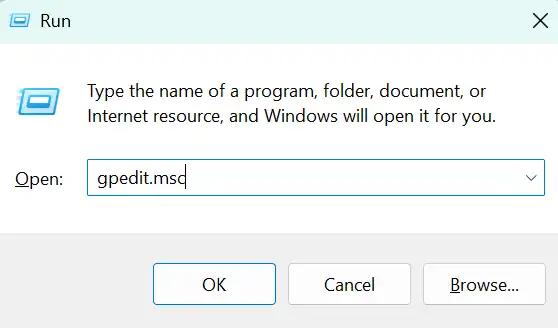
- Navigate to the following path in the Group Policy Editor: Computer Configuration > Administrative Templates > Windows Components > BitLocker Drive Encryption.
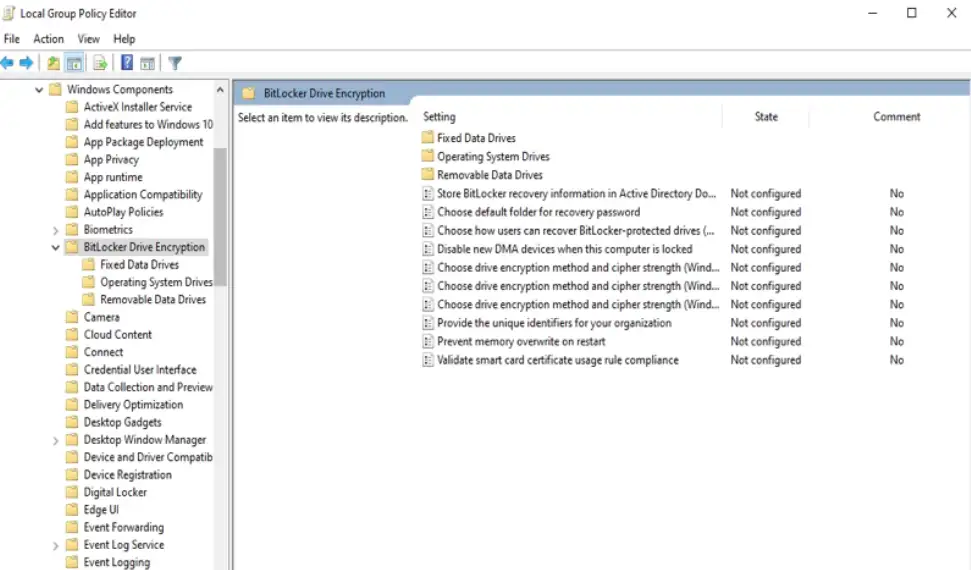
- Check the policy settings and make changes accordingly.
2: Run System File Checker(SFC) command
The outdated or corrupt system files may be one of the reasons for BitLocker error 0x80072f9a. The System File Checker(SFC) utility can scan and fix these files. Here’s how to go about it:
- Open the Command Prompt window.
- Type sfc /scannow and press Enter.
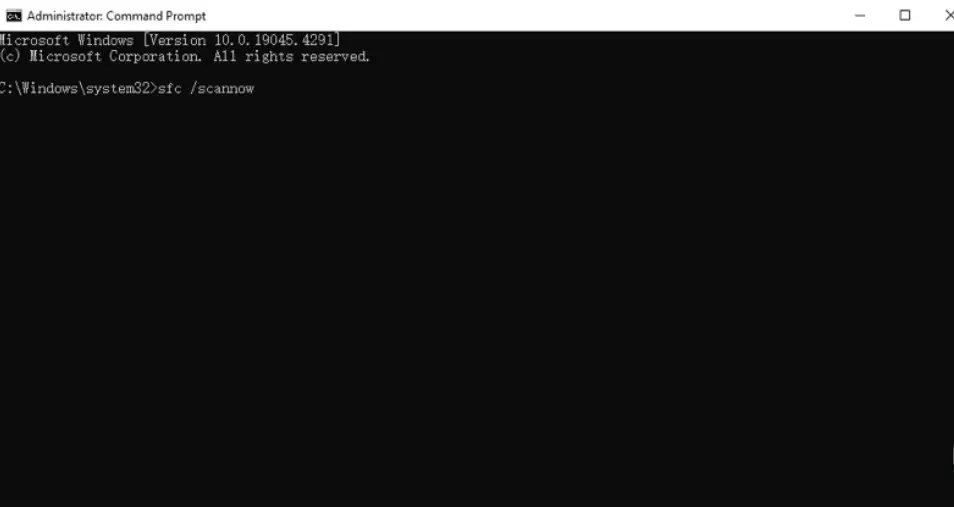
- Now wait for the scan to complete, then restart your system.
3: Establish a Local Administrator Account
When attempting to encrypt a drive with a domain account, the BitLocker 0x80072f9a error may occur. Creating a local administrator account can help to determine whether this is the source of the problem. Follow the steps:
- To access the Settings menu, use the Windows key + I.
- Go to System > Recovery and click the “Restart now” button next to Advanced Startup.
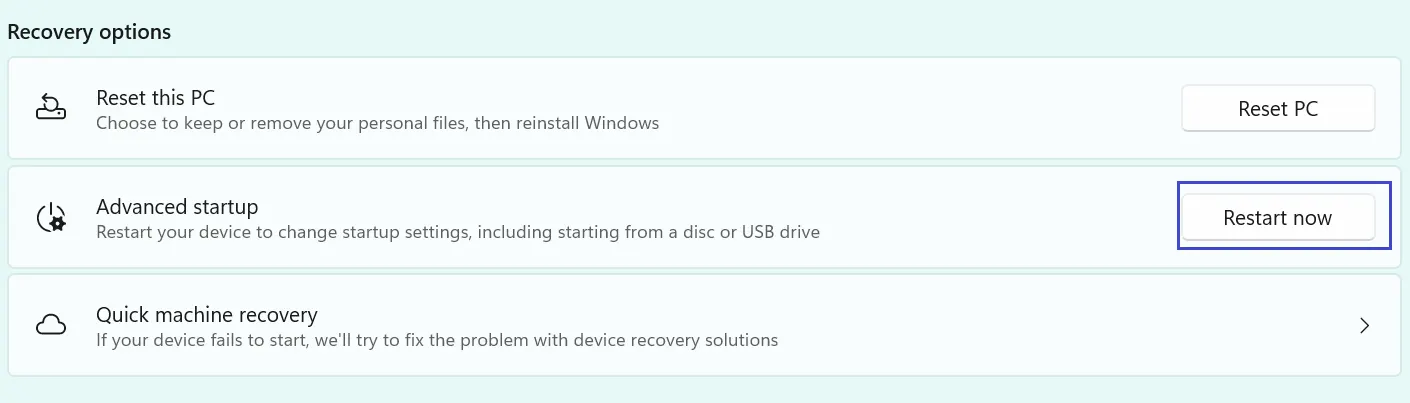
- Choose Troubleshoot > Advanced Options > Command Prompt from the menu.
- Type the following command into the Command Prompt and hit Enter: net administrator / active:yes
- Restart your device, log in with the local administrator account, and see whether the problem still occurs.
4: Reregister the BitLocker WMI Class (win32_encryptablevolume)
If the BitLocker WMI class(win32_encryptablevolume) is not registered properly or is missing from registration, it results in a BitLocker 0x80072f9a error code issue. This problem can be solved by re-registering the BitLocker WMI class. Follow the steps:
- Launch the Command Prompt.
- Enter the following command and click Enter: mofcomp.exe > c:>windows>system32>wbem>win32_encryptablevolume.mof
- If the command is successful, you will get the message “MOF file successfully parsed.” Data storage in the repository… Done!”
- Close the Command Prompt, restart your device, and check to see whether the fix BitLocker issue 0x80072f9a is successful.
5: Clear the SSL State
Problems with server certificate validation can result in the BitLocker Error Code 0x80072f9a. Clearing the SSL state might help refresh the cache of SSL certificates on your machine. Here’s how:
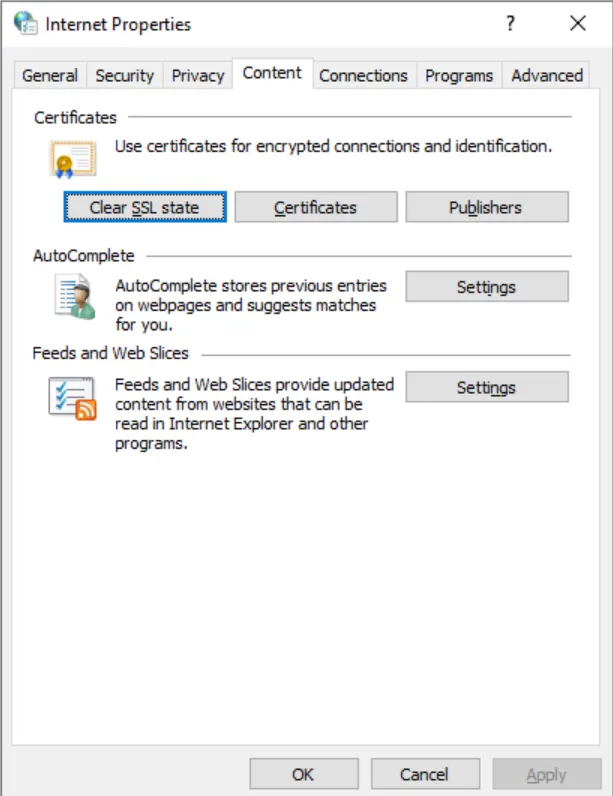
- Click on the Start button, type “Internet Options,” then click Enter.
- Locate the Content tab in the Internet Properties window.
- Click the “Clear SSL State” button in the Certificates section.
- To save your changes, click OK.
6: Disable/Enable BitLocker
If the previous troubleshooting procedures did not solve the error, you can try disabling and then re-enabling BitLocker on your device. This method assists users in addressing transitory issues and errors. Follow these steps:
- Launch the Command Prompt.
- Subsequently, enter the following command and hit Enter: manage-bde -off C:
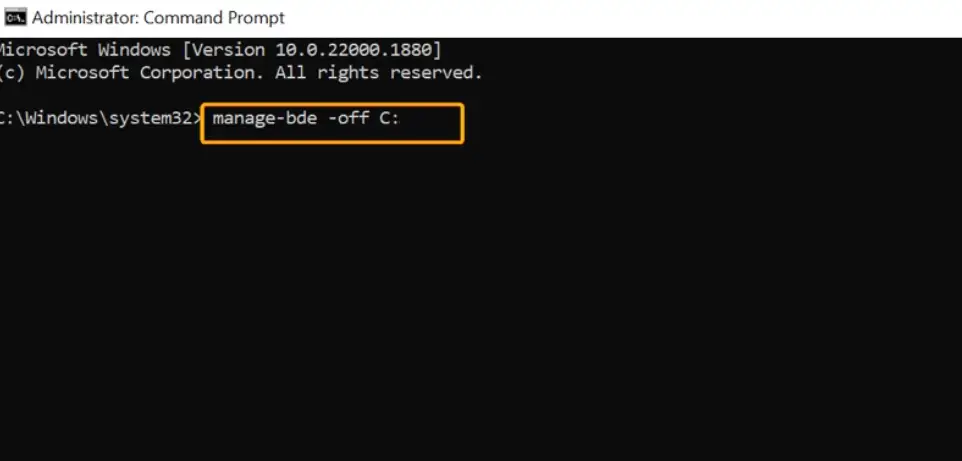
- After you’ve disabled BitLocker, re-enable it with the following command: manage-bde -on C:
Last Words
The BitLocker 0x80072f9a error can be frustrating, as it prevents users from accessing the drive, but it can be resolved easily by making configuration changes or addressing connectivity issues. The common methods include checking your system settings, updating Windows, and disabling/enabling BitLocker. We have discussed all the methods in detail; hopefully, the methods discussed above solve your problem. In case your drive is locked and you don’t have BitLocker recovery key, you can use Bitlocker Data Recovery Tool to recover data from an encrypted drive.