


Read time: 4 Min
To secure data from unauthorised access, Microsoft provides an in-built encryption feature called BitLocker. While BitLocker provides strong encryption features, things can get complicated when a user accidentally formats an encrypted drive. The user may have the impression that formatting a drive permanently deletes data, but in reality, data recovery is possible from a formatted drive, until the data is overwritten. In this blog, we will explore how to recover formatted BitLocker encrypted hard drive data.
Common Reasons for Formatting BitLocker Drive
Knowing the reason why the drive is formatted might help users to recover data from the encrypted drive. There are several reasons why the BitLocker-encrypted drive is formatted. Here are the most common reasons:
- Unintentional Formatting: On certain occasions, during the attempt to format a different disk, there is a possibility of inadvertently formatting the disk that contains crucial data.
- Viral Intrusion: In the event of a viral infiltration on one’s hard disk, the data contained within may incur damage or become unattainable. In the given scenario, it is possible for the computer’s antivirus or firewall to impede the disk’s functionality, hence necessitating the formatting process. In instances of this nature, it is possible for the Windows firewall to eliminate the metadata associated with BitLocker, hence leading to the loss of data.
- Operating System Reinstallation: When reinstalling the operating system, the encrypted drive might get formatted unknowingly.
- Corrupt File System: The BitLocker locks out drive access when the file system is corrupt. In this particular scenario, the sole resolution is to initiate the process of formatting the disk. However, it is important to note that the use of formatting techniques can potentially result in the inadvertent loss of data.
- BitLocker errors or inaccessibility: Sometimes BitLocker itself causes errors due to various reasons, like entering the wrong BitLocker recovery key multiple times.
How to Decrypt a Hard Drive Locked by BitLocker?
Here are the methods to decrypt a BitLocker-encrypted drive:
Method 1: Using the BitLocker Drive Encryption Feature
Follow these steps to unlock a drive that has been protected by BitLocker:
- Open Control Panel.
- Choose System and Security options.
- Select Drive Encryption.
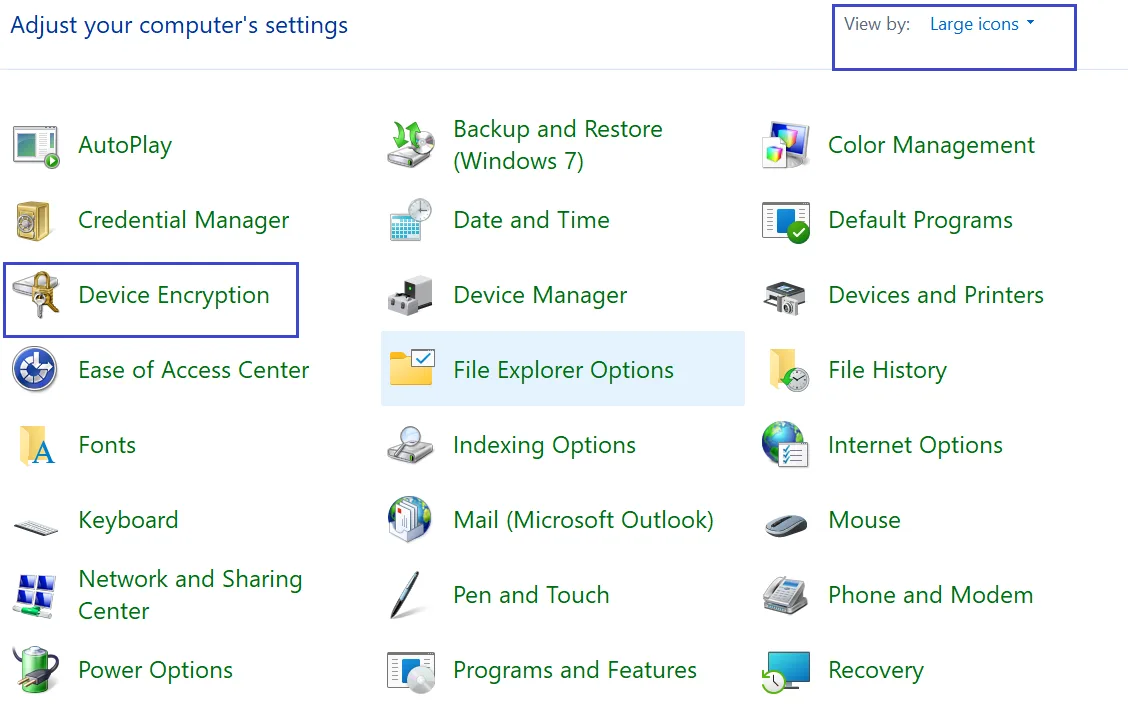
- Click Drive Decrypt. (Selecting this option will immediately unlock the drive you chose.)
Method 2: Use Certificates to Decrypt
To unlock a BitLocker-locked drive using certificates, follow these steps:
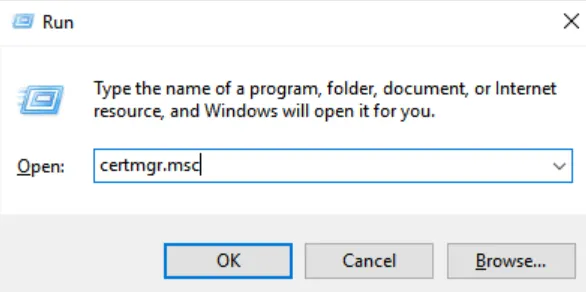
- Press the Windows+R key to open the Run window.
- Type certmgr.msc and hit the Enter key.
- Click Personal > Certificates.
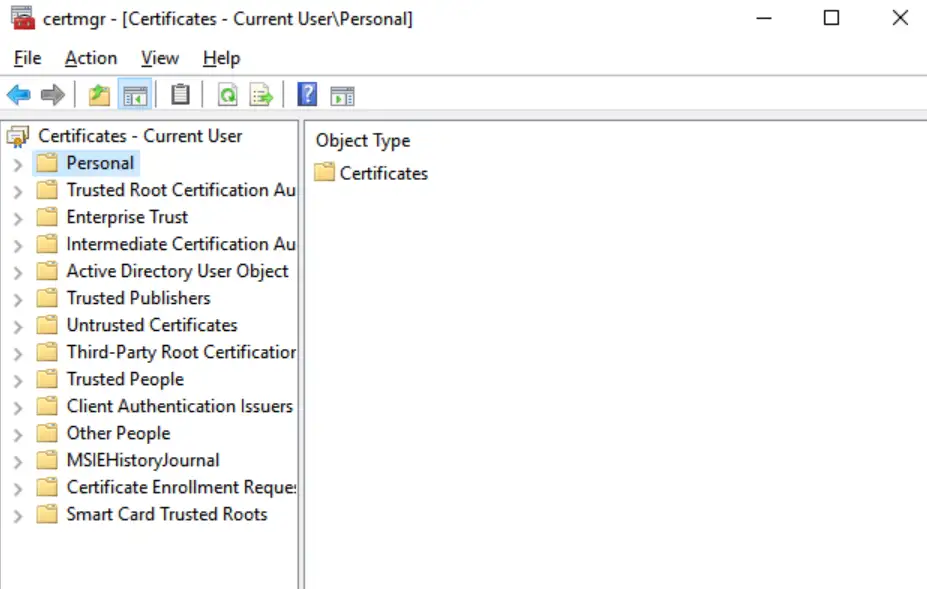
- Verify if a smart card certificate exists.
- Ensure the smart card is connected and working.
- Try unlocking the drive using the smart card.
Method 3: Decryption using Windows PowerShell Mode, method four
Windows PowerShell must be installed on your machine in order to disable BitLocker encryption using Windows PowerShell mode. If it isn’t, get the supported Windows PowerShell version from the Microsoft website and install it. Then take the following actions:
- In administrator mode, start PowerShell.
- Run these commands:
PS C:\>$BLV = Get-BitLockerVolume
PS C:\>Disable-BitLocker -MountPoint $BLVUse the following commands to check the decryption’s status:
Execute the command: PS C:\> Get-BitLockerVolume
Check decryption progress in “Volume Status” and “Encryption Percentage”
Recover Formatted BitLocker Encrypted Hard Drive
Use advanced BitLocker encrypted drive data recovery software, such as BitLocker Recovery tool. Any user can recover data from a drive that has been formatted and encrypted with BitLocker using this reliable software. From BitLocker-encrypted storage devices, the software can assist in recovering lost, erased, and inaccessible data. With the help of BLR BitLocker Recovery Tool for data recovery software, you can retrieve any file type from a storage device that is password- or encryption-protected.

Conclusion
This blog explains how to recover a formatted BitLocker-encrypted hard drive and how to recover expunged files lost as a result of formatting a BitLocker-encrypted disk. Using professional data recovery software, such as BLR BitLocker Data Recovery Tool, is the ideal method for recovering data from a BitLocker-encrypted drive.
If the hard drive is physically damaged, it is advised to contact a professional data recovery service provider with expertise and experience in handling all types of data loss scenarios.