


Read time: 4 Min
BitLocker is a Microsoft-built-in encryption feature that disables unauthorized access to your crucial data. However, sometimes users forget their BitLocker password or cannot locate the recovery key.
In that case, you need to recover BitLocker password and key to easily access your encrypted drive. This guide explains all the possible ways to recover both the key and the password.
What is BitLocker Recovery Key and Password?
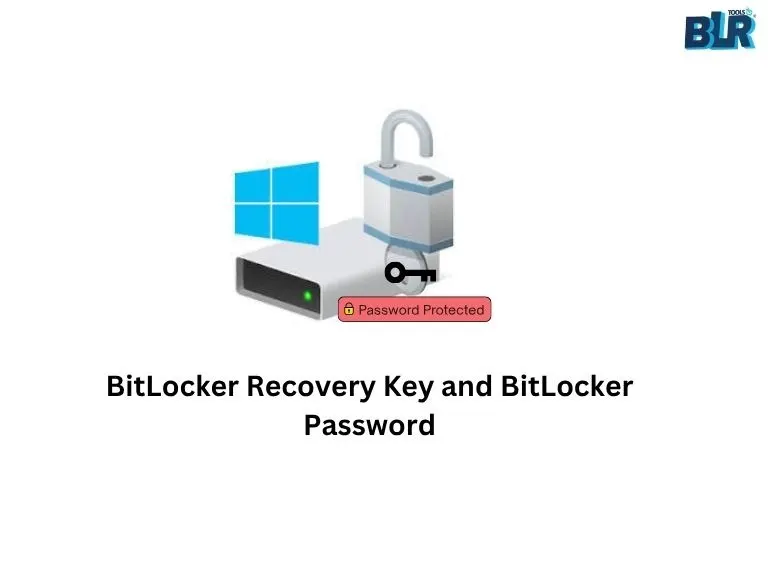
- BitLocker Password: A user-defined password used to unlock the encrypted drive during regular access.
- BitLocker Recovery Key: A 48-digit unique key generated by the system, used as a backup when the password is unavailable or access fails.
Both the BitLocker recovery key and BitLocker password are different from each other, but the usage is the same, unlocking the encrypted drive.
Common Situations When Recovery is Needed
You may need to recover your BitLocker key or password in the following cases:
- Forgot BitLocker password.
- System changes triggered recovery mode.
- When your BitLocker drive partially encrypted.
- Windows update leads to loss of access.
- Modifications in hardware or BIOS.
- Drive not unlocking normally.
Where is BitLocker Recovery Key Stored?
Before you move ahead and try to recover BitLocker password and key, check out these locations, and you might find it.
- Your Microsoft account
- The PDF file is saved in your system
- A USB flash drive where you might save the key and password.
- Work or school account (Azure AD)
- Saved in a text file on another device
If you don’t find the key and password at these locations, then you can try these methods to recover them.
Methods to Recover BitLocker Password and Key
Here in this section, we will discuss some ways that can be helpful for BitLocker Password and Key recovery.
1: Recover BitLocker Key from Microsoft Account
When you encrypt your drive with BitLocker, it asks where to save the key and password. If at that time, you choose a Microsoft account, then it will be saved in your account. This is the most common and easiest method for personal devices that are linked with Microsoft accounts. Here are the steps.
- Go to the Microsoft recovery official page
- Sign in using your Microsoft account
- Locate your device
- Copy the 48-digit recovery key
- Enter the key to unlock your drive
2: Check USB Flash Drive
It may be necessary to save the key and password on a pen drive. Find the drive that you use to backup important data, maybe you will find the password or key. Just plug in the drive and find the file named BitLocker Recovery Key.txt. Copy the key and unlock your BitLocker-encrypted drive.
3: Use Command Prompt (For Advanced Users)
If you are aware of the commands that can be used to find the key file, then you can do it. Here are the steps for you.
- Open Command Prompt as Administrator
- Run the command: manage-bde -protectors -get C:
- Here you will get the name of the key file, using it, find the file in your system.
Note: Replace C: with your drive that is encrypted.
4: Recover from Active Directory (Work Devices)
If your system with the BitLocker-encrypted drive belongs to an organization, then you must contact your IT administrator. Most properly, the recovery key is usually stored in Active Directory or Azure AD
5: Check Printed or Saved Documents
When you enable BitLocker, it gives you options to save the key, one of which is to save it in a PDF file. If you choose the PDF option, then your key will be saved in a .pdf file at your selected location. Find that file and use the key to unlock your drive.
What If You Can’t Find the BitLocker Key?
If you cannot locate your recovery key, there is no official way to unlock the drive. BitLocker is designed with strong encryption to protect your data. However, there are a few possible options:
- Try to use all the associated Microsoft accounts to find the key.
- Contact the Microsoft help center for further assistance.
- Use BitLocker Recovery Tool for crucial data recovery.

Conclusion
It is possible to recover BitLocker password and key in Windows only if you know what needs to be done. The first approach is to try to recover them from your Microsoft account, USB drives, command prompt, or a PDF file that has the key.
If all else fails, seek the help of professionals and for the future, always save your key in a different safe location.